
FREE MEETING: KEY TRENDS AND RISKS IN NFT GAMES– REGISTER

  • Blog
  • About us
  • Contact Us
  • Newsletter
Reading: What is WSL? How to install Linux on Windows in 2025 Full Guide
Share
HTW Logo Daymode HTW Logo Nightmode
  • BOOKMARKS
  • AI
  • Computing
  • Mobile
  • Gaming
    • NYT Games
    • Roblox Codes
    • GTA
  • How-To
  • Entertainment
    • Amazon Prime
    • Netflix
  • Gadget
  • News
Reading: What is WSL? How to install Linux on Windows in 2025 Full Guide
Share
Font ResizerAa
HashTechWaveHashTechWave
Search
  • Artificial Intelligence
  • Automobile
  • Computing
  • Entertainment
  • Gadget
  • How-To
  • Gaming
    • Roblox Codes
    • NYT Games
  • Mobile
  • News
Have an existing account? Sign In
Follow US
© Foxiz News Network. Ruby Design Company. All Rights Reserved.
WSL feature image - hashtechwave
HashTechWave > Blog > How-To > What is WSL? How to install Linux on Windows in 2025 Full Guide
How-ToComputing

What is WSL? How to install Linux on Windows in 2025 Full Guide

Syed Safwan Abbas - CEO
Last updated: January 11, 2025 1:38 pm
Syed Safwan Abbas
Syed Safwan Abbas - CEO
BySyed Safwan Abbas
Tech Editor
Syed Safwan Abbas is a senior full-stack developer and the founder of HashTechWave. With over a decade of hands-on coding experience and a deep interest in...
Follow:
- Tech Editor
Published: September 17, 2024
Share

The Windows Subsystem for Linux (WSL) has caused a breakthrough in development as this tool have features that help developers to cross the operating systems barrier. In the current edition, Linux is executed directly within Windows by creating an environment that is the two worlds to the best of their capabilities.

Contents
  • Understanding What is WSL: Windows Subsystem for Linux
    • What Versions Are In Windows Subsystem for Linux
      • WSL 1:
      • WSL 2
  • Benefits of Using Windows Subsystem for Linux
  • How to Install WSL on Windows
    • Step 1: Enabling WSL and Virtual Machine Platform (Using Powershell)
      • Alternative Way using Control Panel
  • Step 2: Installing Required Linux Distribution
  • Step 3: Start WSL and Some Basic Commands (Optional)
    • Some Basic Linux Commands
  • Where can i find installed distro of WSL in Windows?
  • Conclusion: Why WSL Matters

In this guide, we will discuss the nature of WSL, its pros over traditional virtual machines and the way to get started with WSL on your Windows system.

Understanding What is WSL: Windows Subsystem for Linux

WSL is a software layer that is made to run Linux executables directly on the Windows platform. It builds the Linux set up on the Windows OS without necessitating the dual-boot arrangement or classical virtual machines.
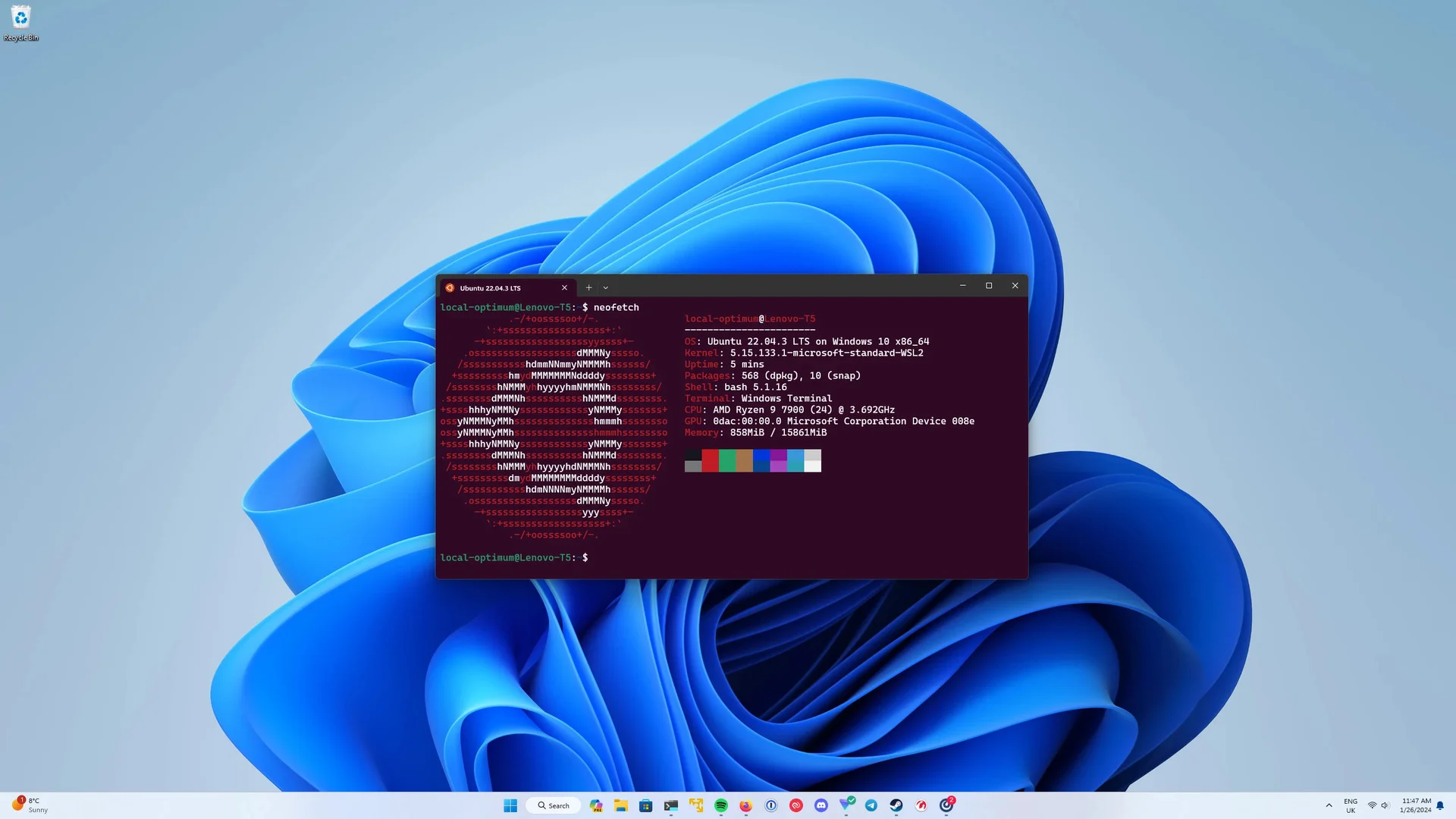
Ubuntu WSL - hashtechwave
Ubuntu (WSL)

This implies that developers can now run Linux commands and applications together with their Windows applications, thus, improving productivity to a great extent.

More Read

Download and Upgrade to Windows 10 - Hashtechwave
Download & Install Latest Windows 10 Official ISO (2025): Full Step-by-Step Guide

What Versions Are In Windows Subsystem for Linux

Windows Subsystem for Linux has two versions. Each version offers unique features and improvements over the other. Understanding the differences will help you choose the best version for your needs.

WSL 1:

On August 4, 2016, It was first introduced with the ability to run Linux distributions on Windows. Naturally, it is a compatibility layer hence, it is not a perfect solution. This method is indeed effective however, it may be the reason for performance issues sometimes, especially for those applications that use system calls extensively.

WSL 2

On May 2019, It was launched in which was an improved version of previous release. It uses a lightweight virtual machine to run a real Linux kernel by providing improved performance and greater compatibility with Linux applications. It is significantly faster and more efficient by making it the recommended version for most users.
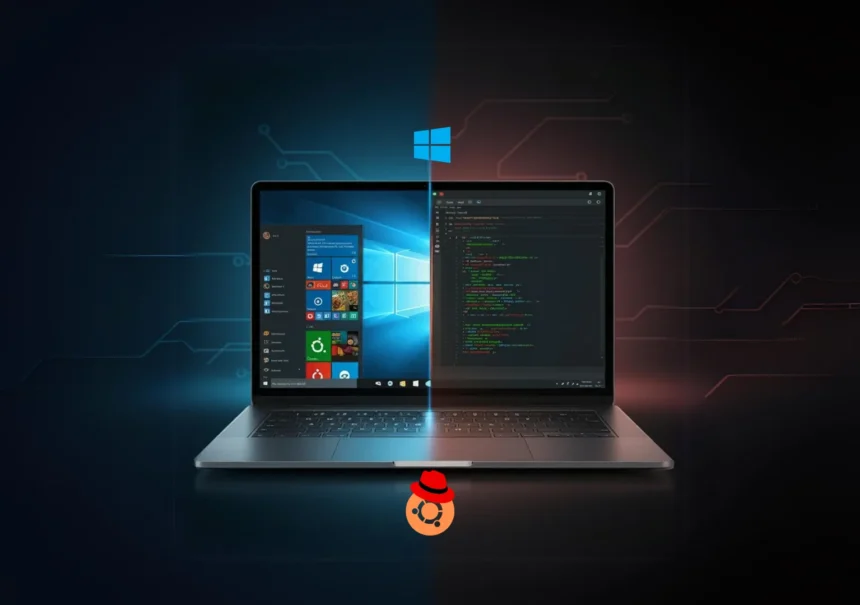
WSL OS Switching on Kernal Level - hashtechwave
Image: HashTechWave

Benefits of Using Windows Subsystem for Linux

WSL offers numerous advantages that make it an attractive option for developers:

  • Seamless Integration: Allows users to run Linux tools alongside your Windows applications by making it easy to switch between environments.
  • Performance: Windows Subsystem for Linux 2 delivers improved performance, especially for file-intensive operations.
  • Resource Efficiency: Unlike traditional virtual machines, It require not much resources.
  • Access to Linux Tools: Developers can apply a wide range of Linux command-line tools directly from Windows.
  • Visual Studio Code Integration: Providing powerful development environment that supports both Windows and Linux workflows.

You May Also Like: Ultimate Guide to Master Docker (DevOps) Skills

How to Install WSL on Windows

Before setting up Windows Subsystem for Linux, you need some requirements to be fullfilled which includes, to enable Virtual Machine Platform Feature on Windows 10 version higher than 1903 or on Windows 11. Now follow all of below steps to successfully enable WSL:

Step 1: Enabling WSL and Virtual Machine Platform (Using Powershell)

This is the first step where you need to open Powershell as administrator and enter below command to enable WSL for your machine:

dism.exe /online /enable-feature /featurename:Microsoft-Windows-Subsystem-Linux /all /norestart

Right after enabling Windows Subsystem for Linux, You need to enable virtual machine platform feature as well and right after executing below command, you need to restart your pc:

dism.exe /online /enable-feature /featurename:VirtualMachinePlatform /all /norestart

After restarting, you may want to set Windows Subsystem for Linux 2 as your default version. In PowerShell, run the command below for it:

wsl --set-default-version 2

Alternative Way using Control Panel

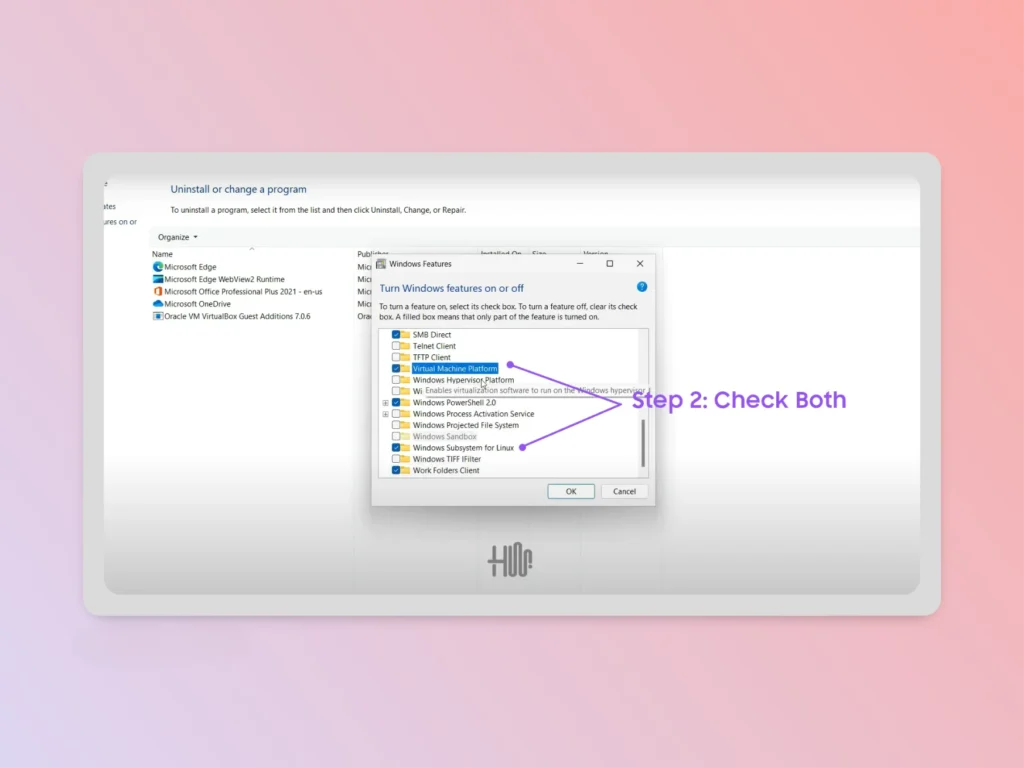
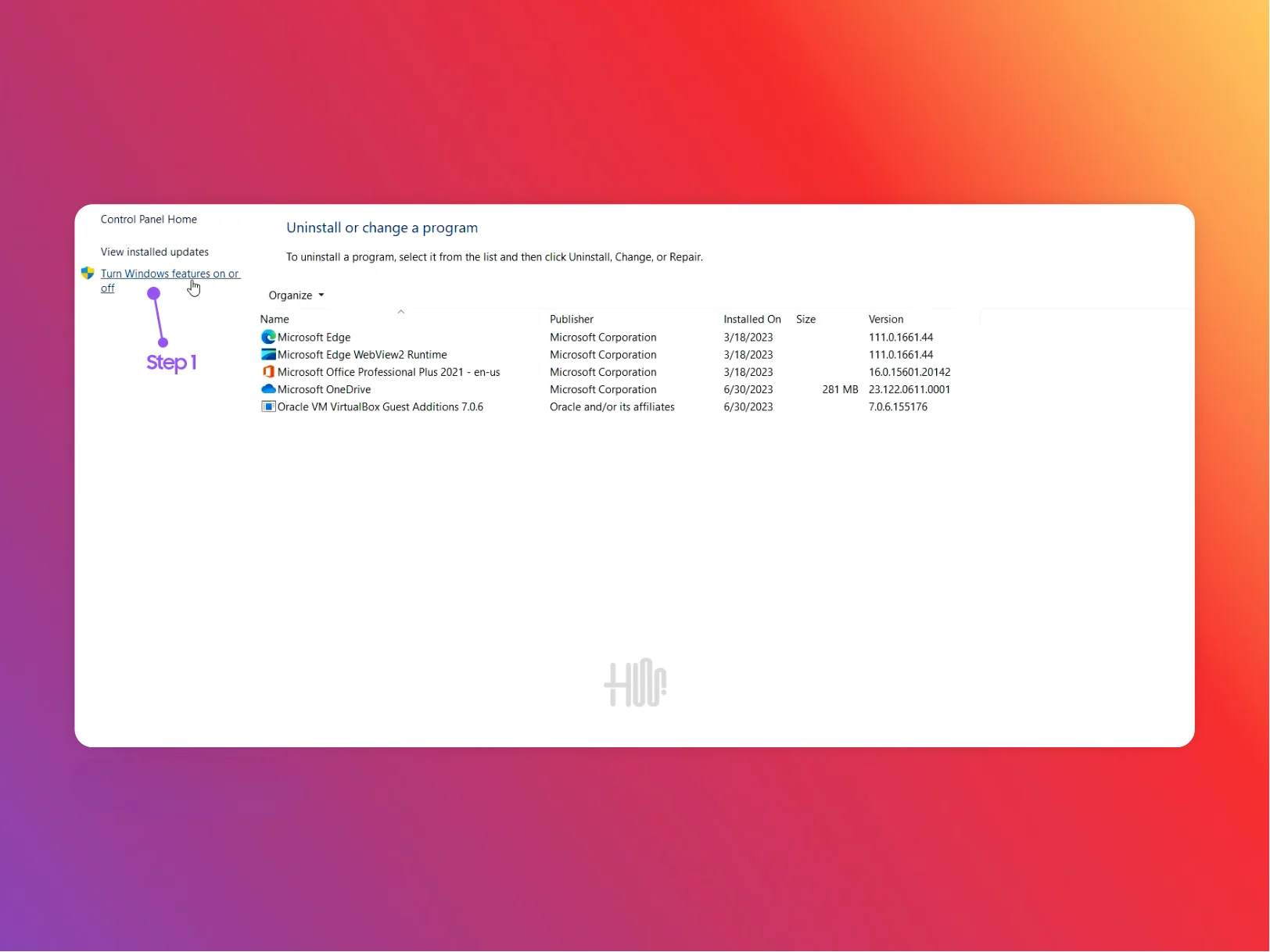
With this way you can also turn windows features using Control panel as demonstrated below:
WSL features enabling steps - hashtechwave
Step 1: To Open Up Features Dialog from Control Panel
WSL Features enable on Windows - hashtechwave
Step 2: Check Required Features

Here after checking and pressing OK button, you must need to reboot your system to adapt these changes properly.

Step 2: Installing Required Linux Distribution

Once WSL is enabled, you can install a Linux distribution of your choice, for that you have multiple ways of installing Linux on Windows Subsystem. You can do this by following few easy steps:

  • Open up Microsoft Store
  • Search “Linux” to choose available distributions.
  • Select your prefered distributions ( Debian, Kali, Ubuntu etc.) and Click Install.
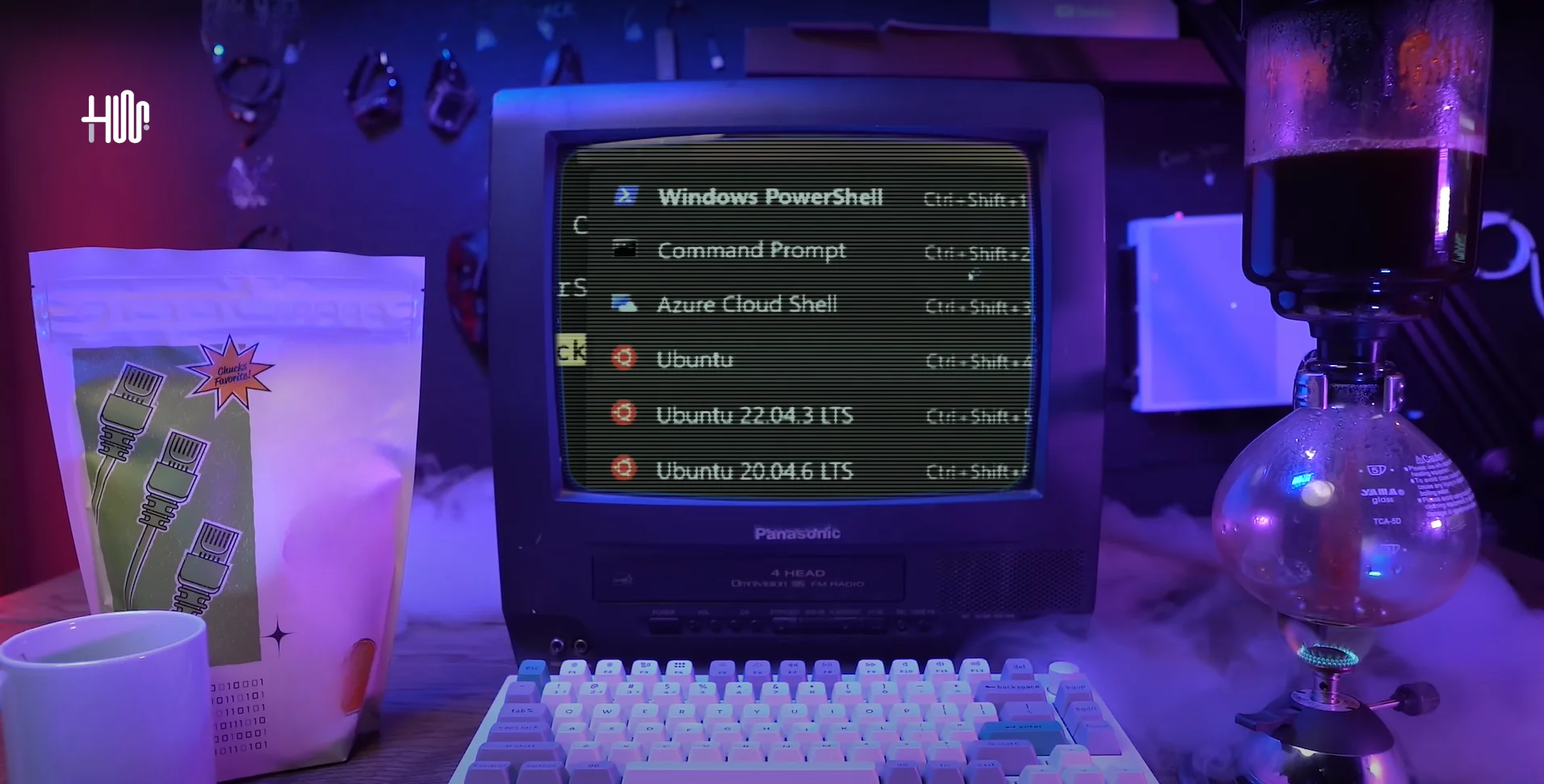
WSL features enabling steps - hashtechwave
Image: HashTechWave

Step 3: Start WSL and Some Basic Commands (Optional)

All done! You can now make use of Linux commands and necessary tools in your Windows environment. To get to your Linux environment just type “wsl” in the command prompt or search for the distribution you have installed in the Start menu.

Some Basic Linux Commands

Once you have installed a Linux any distribution, you can start using it immediately. Here are some basic Linux commands to help you get familiar:

  • ls: List all files and folders in current directory
  • cd: Change directory. e.g. Use “cd ..” command to move one directory back
  • mkdir: To creates new directory use this command.example: mkdir hashtechwave
  • touch: create new file following name of file. example: “touch index.html”
  • rm: Removes a file. Use rm -r to remove a directory

Where can i find installed distro of WSL in Windows?

Navigate to following address:

C:\Users\{Username}\AppData\Local\Packages\{DistroPackage}\LocalState\

Here replace Username with your PC’s username and DistroPackage will likely be “CanonicalGroupLimited” if Ubuntu is installed and if debian then it can be:

Distro NameDistroPackage Name
UbuntuCanonicalGroupLimited.Ubuntu…
Ubuntu 22.04 LTSCanonicalGroupLimited.Ubuntu22.04LTS_…
Ubuntu 20.04 LTSCanonicalGroupLimited.Ubuntu20.04LTS_…
DebianTheDebianProject.Debian…
Kali LinuxKaliLinux.KaliLinuxRolling_…
Fedora RemixWhitewaterFoundryLtdCo.FedoraRemixforWSL_…
Arch LinuxArchLinux_…
WSL CentOS 7CentOS7_…
All Distro Names with their Package name

Conclusion: Why WSL Matters

WSL is very important for those people who want flexibility of Linux while staying on Windows. This technology has made development very much straight by helping users to be in the flow and at the same time, it enables them to avoid the complex setting. Simply WSL is the tool that bridges two different operating systems, thereby allowing the user to seamlessly utilize the advantages of the two Operating Systems in a single integrated environment.

Note: Updated this article on 11/01/2025, According to latest package names

Editor’s Recommendation:

  • Ultimate Guide: Setup Mail Server on CloudPanel Ubuntu 2025
  • MSI Raider 18 HX A14V Ultimate Power Review & 18″ 4K Display
  • Ultimate Guide: Migrate WordPress from Shared Hosting to VPS Hosting (Hostinger)
  • Fix: Windows 10 Start Menu Crash After Setting App Tile
TAGGED:GuidesMicrosoft WindowsTutorial

Sign Up For Daily Newsletter

Be keep up! Get the latest breaking news delivered straight to your inbox.
[mc4wp_form]
By signing up, you agree to our Terms of Use and acknowledge the data practices in our Privacy Policy. You may unsubscribe at any time.
Share This Article
Facebook Email Copy Link Print
Syed Safwan Abbas - CEO
BySyed Safwan Abbas
Tech Editor
Follow:
Syed Safwan Abbas is a senior full-stack developer and the founder of HashTechWave. With over a decade of hands-on coding experience and a deep interest in emerging technologies, he leads the platform's coverage of digital trends, smart tools, and developer news. Outside his work, he’s an active tech community contributor and a casual PUBG competitor.
Previous Article Open AI o1 preview and o1 mini - featured image OpenAI Major Upgrades Explained: O1-Preview & O1-Mini
Next Article final fantasy 16 pc - hashtechwave - epic store Final Fantasy XVI Now Available (Epic Store) PC: DLC & Specs

Follow US

Find US on Socials
Facebook Twitter Instagram
Subscribe to our newsletter

Get Newest Articles Instantly!

Subscription Form

- Advertisement -
Ad image
Popular News
Today NYT Connections Hints & Answers
NYT Connections Today Hints & Answers For Feb 15, 2026 (Puzzle #980)
NYT Strands game #715 puzzle - Feb 16, 2026
NYT Strands Today Hints, Spangram & Answers for Feb 16, 2026 (Game #715)
Wordle hints today (#1677) for Jan 21, 2026 answer
Today’s NYT Wordle Hints & Answer of Feb 16 (Solution #1703)

Follow Us on Socials

We use social media to react to breaking news, update supporters and share information

Twitter Linkedin Whatsapp Threads Instagram
HTW Logo Daymode HTW Logo Nightmode

Delivers trusted tech news, gaming guides, Roblox updates, and digital insights for everyday readers.

Hot News
Coinbase Q4 Earnings Disaster: $667M Loss & Trading Outage Explained
OpenClaw Security Risks: Hype vs Reality Guide (2026)
Breaking: Notepad++ Update Hijacked by State Hackers
Intrepid Studios Implodes: Team Resign Hit Ashes of Creation
Highguard Shieldbreaker Locations: All Map Spawns & Timers Guide (2026)

Subscribe to our newsletter

You can be the first to find out the latest news and tips about trading, markets...

Subscription Form

Legal

  • Cookies Policy
  • Disclaimer
  • Privacy Policy
  • Terms and Condition

Company

  • Editorial Policy
  • Submit PR or Sponsored Article
  • About Us
  • Contact Us
© HashTechMedia Network. HashTechWave. All Rights Reserved.
Join Us!
Subscribe to our newsletter and never miss our latest news, podcasts etc..
Subscription Form

Zero spam, Unsubscribe at any time.
Welcome Back!

Sign in to your account

Username or Email Address
Password

Lost your password?