hashtechwave-light
  • AI
  • Computing
  • Mobile
  • Gaming
    • NYT Games
    • Roblox Codes
    • GTA
  • How-To
  • Entertainment
    • Amazon Prime
    • Netflix
  • Gadget
  • News
Saturday, Feb 7, 2026
Notification
Font ResizerAa
HashTechWaveHashTechWave
  • Artificial Intelligence
  • Automobile
  • Computing
  • Entertainment
  • Gadget
  • How-To
  • Gaming
  • Mobile
  • News
Search
  • Artificial Intelligence
  • Automobile
  • Computing
  • Entertainment
  • Gadget
  • How-To
  • Gaming
    • Roblox Codes
    • NYT Games
  • Mobile
  • News
Have an existing account? Sign In
Follow US
© HashTechWave News Network. HashBitStudio Company. All Rights Reserved.
Download and Upgrade to Windows 10 - Hashtechwave
HashTechWave > Blog > How-To > Download & Install Latest Windows 10 Official ISO (2025): Full Step-by-Step Guide
How-ToComputing

Download & Install Latest Windows 10 Official ISO (2025): Full Step-by-Step Guide

Syed Safwan Abbas - CEO
Last updated: August 29, 2025 3:25 am
By
Syed Safwan Abbas
Syed Safwan Abbas - CEO
BySyed Safwan Abbas
Tech Editor
Syed Safwan Abbas is a senior full-stack developer and the founder of HashTechWave. With over a decade of hands-on coding experience and a deep interest in...
Follow:
8 Min Read
SHARE

You’re trying to install or upgrade Windows 10 but feel unsure where to begin or maybe you just want a clean, official ISO file without the usual confusion or third-party downloads. You’re not alone. Whether you’re building a PC from scratch, dealing with a broken system or just giving your Windows install a fresh start, it’s important to know you’re getting the real deal—directly from Microsoft.

Contents
  • Back Up Your Data Before You Begin
  • Method 1: Download Windows 10 via Media Creation Tool
  • Method 2: Direct ISO Download (Using a Hidden Browser Trick)
  • Create a Bootable USB Using Rufus
  • MBR vs GPT: What’s Best for Your PC?
  • Frequently Asked Questions
    • Can I use this guide for Windows 11 too?
    • What happens if I don’t enter a product key?
    • Is this method legal and safe?

It better to Always Keep Your Data Backed Up! Rather to regret later

HashBitStudio

In this updated guide, I’ll walk you through everything you need to know about downloading the latest official Windows 10 ISO, creating a bootable USB safely, and installing it with confidence without risking your data or system. No fluff. No fake tools. Just clear, proven steps that work in 2025.

Back Up Your Data Before You Begin

Before installing or upgrading to Microsoft Windows 10, it’s very important to take backup to prevent any loss later on. Here are some quick and reliable methods of taking backup:

- Advertisement -
  • Use an external hard drive to copy your personal files manually.
  • Sync essential folders to Google Drive, Dropbox, or OneDrive.
  • For smaller files, a USB flash drive works well too.

By backing up your data, you can move forward with the Windows 10 installation, knowing your important files are safe.

Method 1: Download Windows 10 via Media Creation Tool

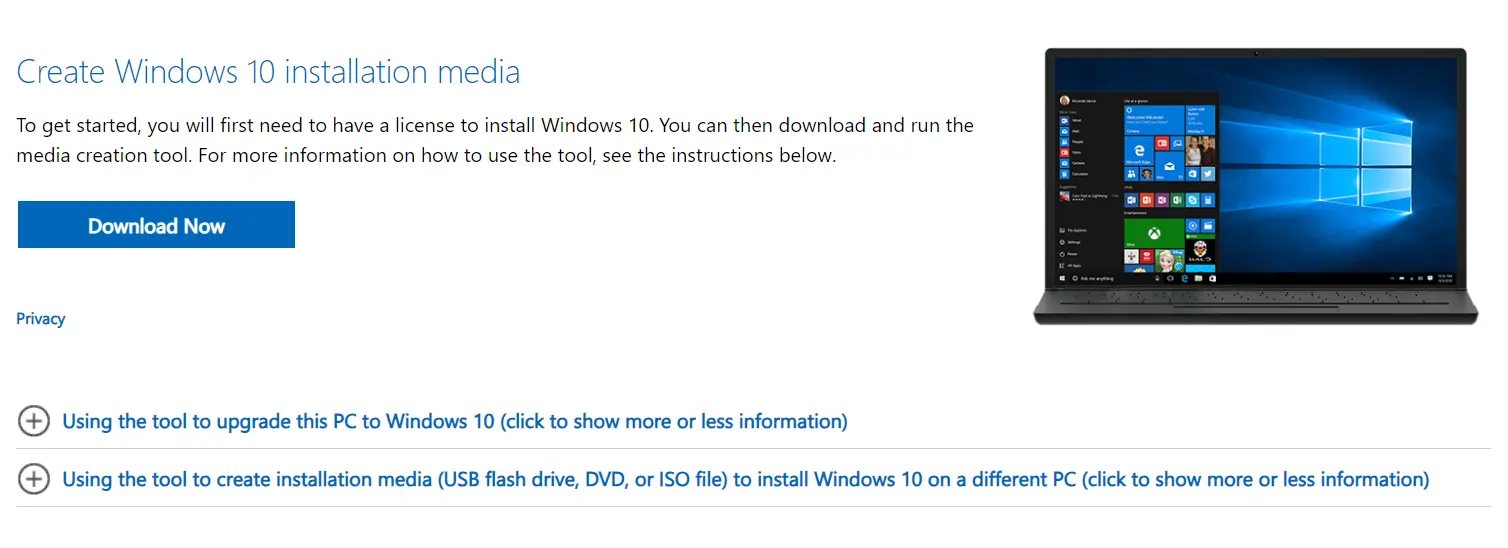
The official Microsoft Media Creation Tool is the easiest way to download Windows 10 and create a bootable USB installer.

Download Windows 10 using Installation Media - hashtechwave
Source: Microsoft Installation Media – Download Screen
  • Step 1: Visit the official website of Microsoft Windows 10
  • Step 2: Locate the Download Button and click on it to download Microsoft Installation media
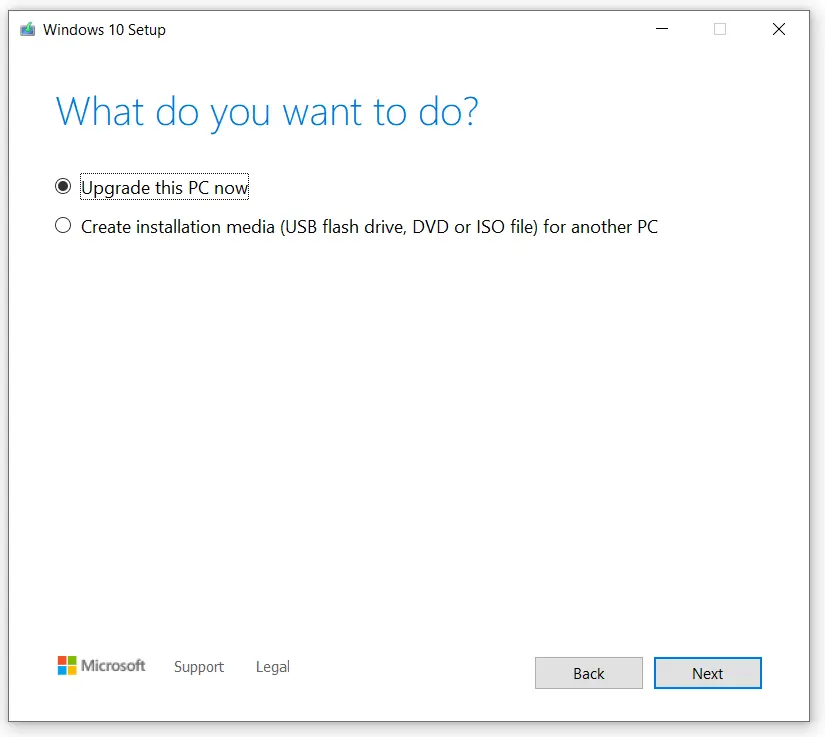
  • Step 3: Launch the tool and choose whether to upgrade your current PC or create installation media
Select installation method
  1. Step 4: Select your preferred language, edition, and architecture (64-bit recommended)
  2. Step 5: Choose to either create a bootable USB flash drive or download an ISO file for DVD use

Follow the on-screen instructions to create a bootable USB drive or DVD, this may take few minutes to couple of hours depending on Internet speed.

- Advertisement -

More Read

Google Personal Intelligence in AI Mode
Google Personal Intelligence in AI Mode Explained
OpenClaw Security Risks: Hype vs Reality Guide (2026)
HP Victus 15 AMD 5 Ryzen 8650HS or Intel Core i5 12450H? What to Choose in 2025
Wordle Tips & Tricks: 8 Pro Strategies to Win More (2026)
Fix: PUBG Mobile Audio Switches to Phone Speaker When Mic is On (Android Bluetooth Glitch)

Method 2: Direct ISO Download (Using a Hidden Browser Trick)

This second method is my favourite one, why waiting so long rather Downloading an official ISO file from Microsoft’s website. Without further a ado follow along below steps to download latest Microsoft Windows:
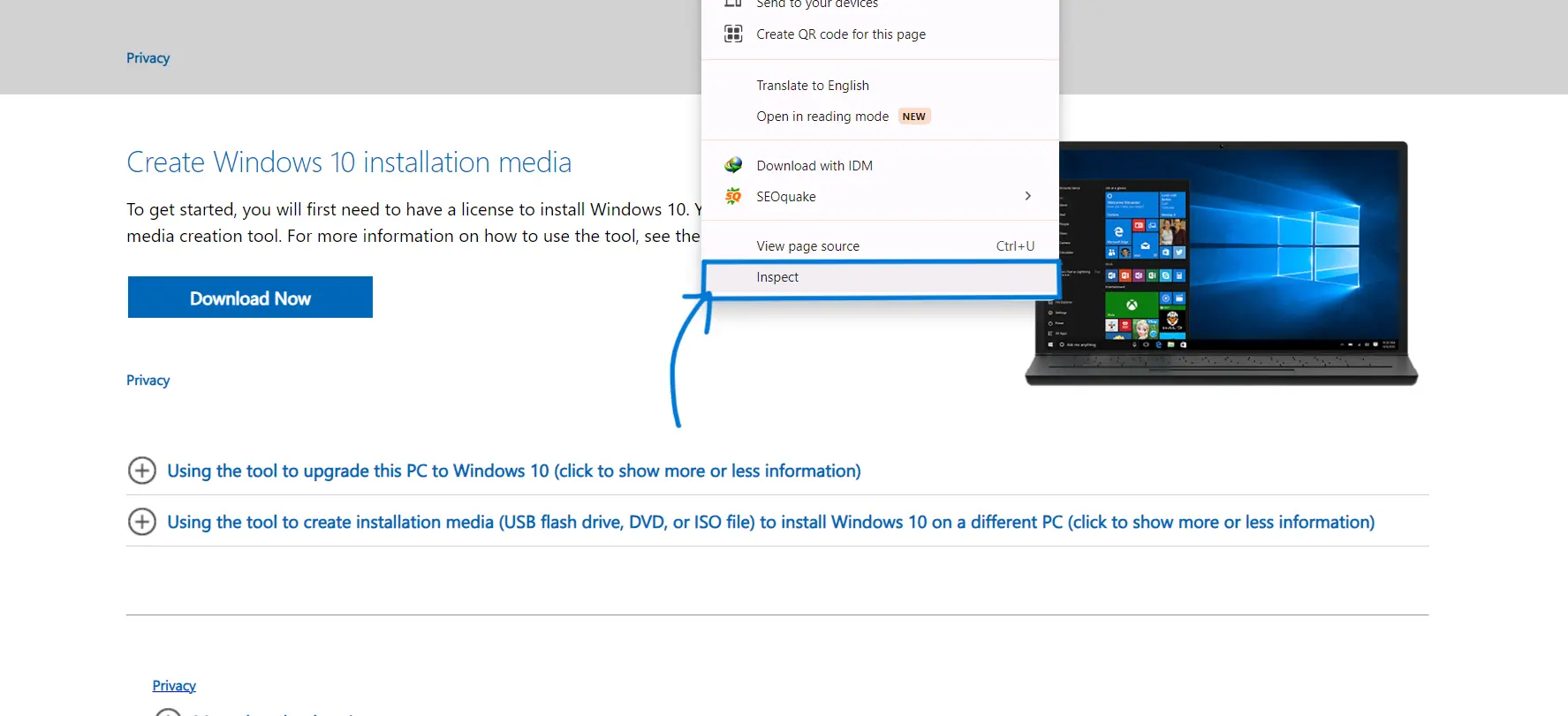
Inspect Element
Click on Inspect Element
  • Step 1: Visit Microsoft Windows 10 official website.
  • Step 2: Right-click anywhere on the page and choose Inspect.
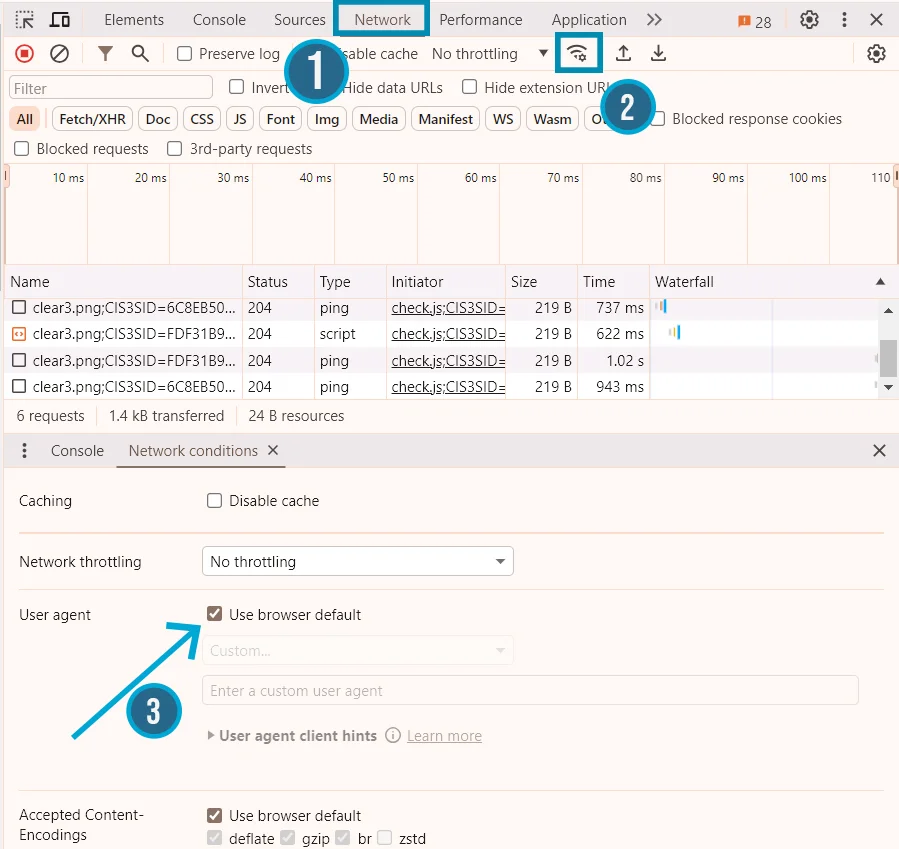
  • Step 3: In the Dev Tools window, Select Network from top tab of Inspect Element and click out the wireless signal icons to toggle more network conditions.
HashTechwave - inspect element network info
Download & Install Latest Windows 10 Official ISO (2025): Full Step-by-Step Guide 11
  • Step 3: Uncheck “Use Browser Default” and Change your user agent to Safari – Mac from activated drop down menu
  • Step 4: Refresh the page, and you will notice that that interface is changed now and installation media is gone.
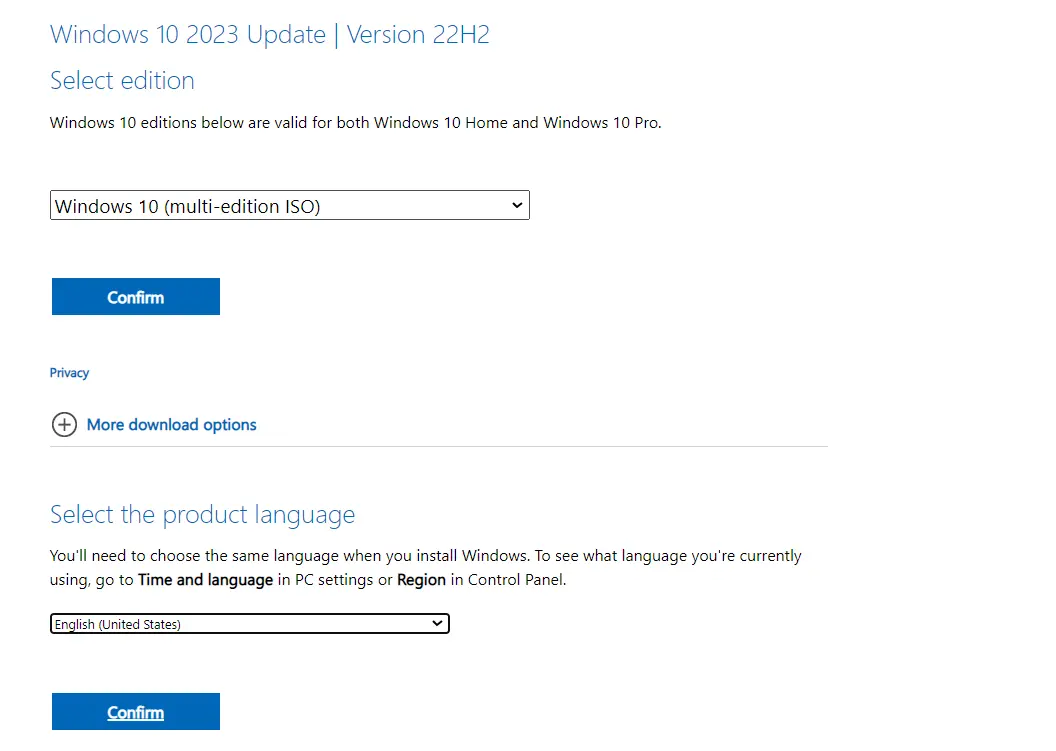
Choose Language and Windows
  • Step 5: Press Confirm button and Download of Latest Windows 10 ISO file will begin.

Create a Bootable USB Using Rufus

After downloading Windows 10 ISO file, next step is to create a bootable usb drive which will be later on use to install Windows on your system. To install, we need a software named as Rufus.
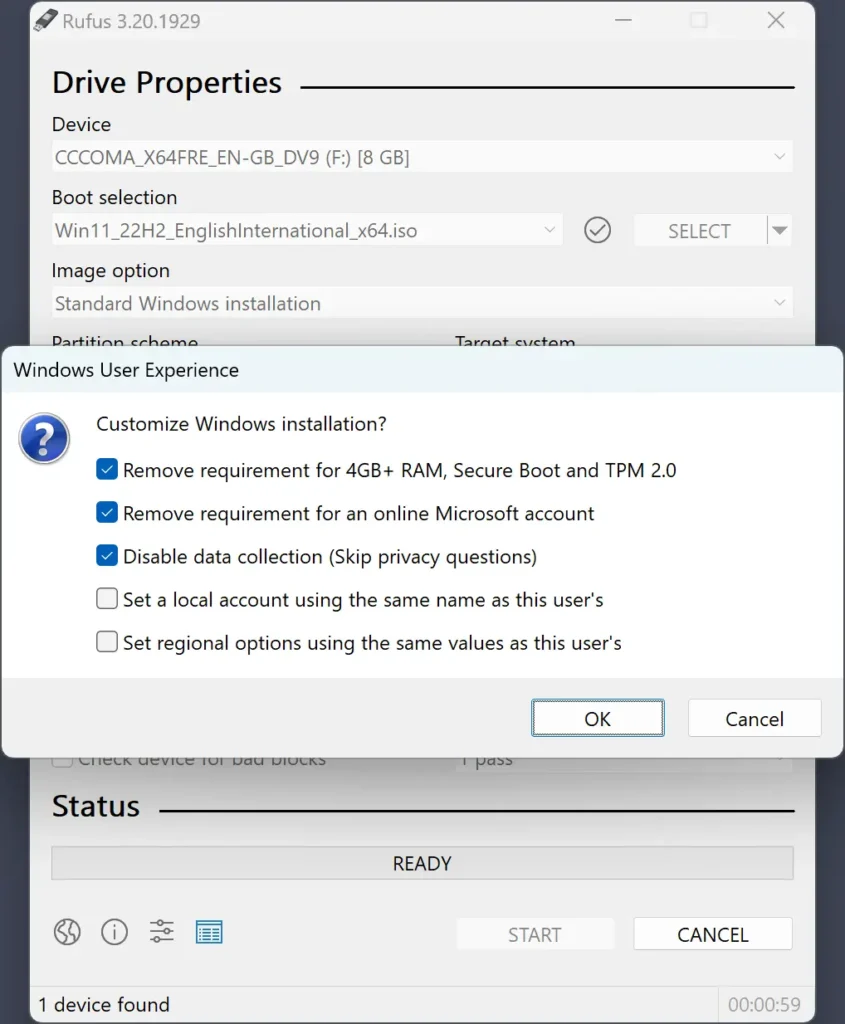
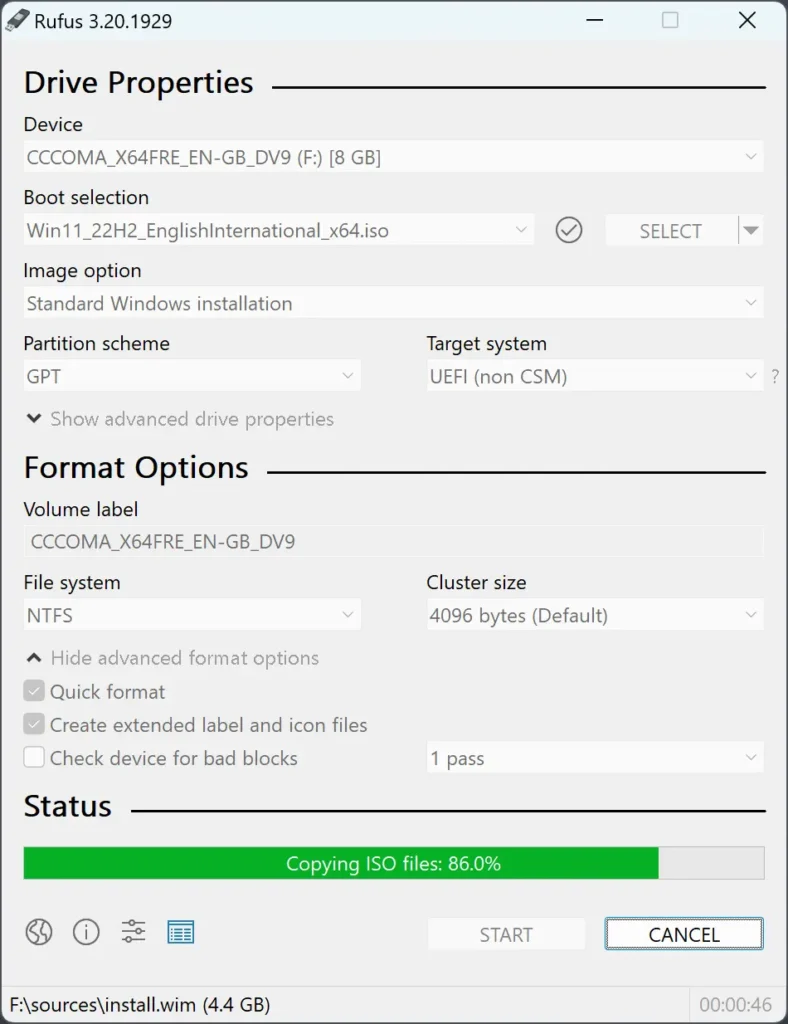
- Advertisement -
  • Download Rufus from their main website and then open it.
  • Insert an empty USB flash drive (at least 8GB)
Step 3 where we have rufus bootable usb
Rufus installing windows operation system on Usb

After opening Rufus, you need to connect you USB Drive of atleast 8 GB and make sure there is no data existant on you Drive. Note: Existing Data will be erased from your drive right after creating bootable.

  • Firstly Select the ISO file of Windows 10 that you downloaded from their official website.
  • Choose the Partition Schema, between MBR or GPT
  • Press Start and this will start creating your USB Drive as bootable Windows 10 Setup.

MBR vs GPT: What’s Best for Your PC?

MBR or Master Boot Record is the older standard which supports drives up to 2TB with a maximum of 4 primary partitions (or 3 primary and 1 extended partition for more). Ideal for legacy systems with BIOS firmware. Where as GPT (GUID Partition Table) is the newer standard that supports massive drives (practically unlimited) and allowing for up to 128 partitions. Works best with UEFI firmware, common on modern systems.

- Advertisement -

Quick Note

If your PC is modern and uses UEFI firmware (most devices after 2015), go with GPT. If it’s an older system running legacy BIOS, choose MBR.

How to Choose between MBR and GPT?

To choose between either of Partition scheme, check your firmware If you are unsure, firstly restart your PC and enter the BIOS/UEFI settings (usually by pressing Del, Esc, or F2, F9, F12 during boot). Look for “UEFI mode” or a similar option. If present, choose GPT. In short, for a new Windows 10 installation on a modern system, MBR might work, but GPT is the future-proof option.

How to Install Windows 10 from Your Bootable USB

Now it’s time to install Windows 10 using the USB you created.

  • Insert the USB drive into your PC
  • Restart your computer and enter then enter BIOS settings using specific key during the boot process such as F2, F12, or Delete on keyboard. This can vary according to your PC vendor.
  • In BIOS settings firstly locate the option to change the boot order or select the boot device.
  • Select your language, time zone, and keyboard layout
  • On the “Get going fast” page, select “Custom: Install Windows only (advanced)” to perform a clean install of Windows 10.
  • Follow the remaining steps to complete the installation, including partitioning your hard drive, setting up your user account and personalizing your settings.

Depending on how fast your computer is, it might take a while for the installation to finish. After it does finish installing, your system will reboot itself and then bring up the new Windows 10 desktop.
Editor’s Recommendation:

  • How to Fix: Windows 10 Start Menu Crash After Setting App Tile in Microsoft Photos

Frequently Asked Questions

Can I use this guide for Windows 11 too?

Some steps apply, but Windows 11 has stricter hardware requirements. Use Microsoft’s compatibility checker first.

What happens if I don’t enter a product key?

You can skip it during installation and activate Windows later.

Is this method legal and safe?

Yes, all downloads are from Microsoft’s official servers. No third-party links involved.

TAGGED:GuidesMicrosoft Windows

Sign Up For Daily Newsletter

Be keep up! Get the latest breaking news delivered straight to your inbox.
Join Newsletter Join on Whatsapp
Syed Safwan Abbas - CEO
BySyed Safwan Abbas
Tech Editor
Follow:
Syed Safwan Abbas is a senior full-stack developer and the founder of HashTechWave. With over a decade of hands-on coding experience and a deep interest in emerging technologies, he leads the platform's coverage of digital trends, smart tools, and developer news. Outside his work, he’s an active tech community contributor and a casual PUBG competitor.
Previous Article Windows 10 Start Menu Crash Fix Fix: Windows 11 & Windows 10 Start Menu Crash (Microsoft Photos App Tile Bug)
Next Article All Star Tower Defense X codes rewards and how to redeem them in July 2025 All Star Tower Defense X (ASTDX) Latest Codes of January, 2026

Follow US

Find US on Social Medias
FacebookLike
XFollow
YoutubeSubscribe
ThreadsFollow
BlueskyFollow
Popular News
Today NYT Connections Hints & Answers
NYT Connections Hints & Answers (#972) for Feb 7, 2026 Solution
Sarah Thompson
By Sarah Thompson
February 6, 2026
NYT Strands Hints, Answers and Spangram Today of Feb 7, 2026
OpenClaw Security Risks: Hype vs Reality Guide (2026)
Today’s NYT Wordle Hints & Answer of Feb 7 (Solution #1694)
Breaking: Notepad++ Update Hijacked by State Hackers

You Might Also Like

moltbot old clawdbot featured image
Artificial IntelligenceComputing

Moltbot & Mac Mini Guide: This Duo Is Taking Over AI (2026)

By Syed Safwan Abbas
7 Min Read
OpenAI introduces ChatGPT Health
Artificial IntelligenceHow-To

How to Get ChatGPT Health: Waitlist, Privacy Features & Medical Record

By Syed Safwan Abbas
13 Min Read
AMD Ryzen AI 400 & 9850X3D Unveiled at CES 2026 Full Specs vs. Intel
Artificial IntelligenceComputing

AMD Ryzen AI 400 & 9850X3D Unveiled at CES 2026: Full Specs vs. Intel

By Syed Safwan Abbas
6 Min Read
hashtechwave-light

Your trusted source for gaming insights, technology updates, digital trends, and industry news. We deliver helpful guides, reviews, and updates to keep you informed in today’s fast-moving digital world.

Categories

  • Artificial Intelligence
  • Computing
  • Gaming
  • Entertainment
  • Gadget
  • How-To

Quick Links

  • Cookies Policy
  • Disclaimer
  • Privacy Policy
  • Terms and Condition

© 2025 HashTechWave. All rights reserved.

adbanner
hashtechwave mobile
Welcome Back!

Sign in to your account

Username or Email Address
Password

Lost your password?