
You’re trying to install or upgrade Windows 10 but feel unsure where to begin or maybe you just want a clean, official ISO file without the usual confusion or third-party downloads. You’re not alone. Whether you’re building a PC from scratch, dealing with a broken system or just giving your Windows install a fresh start, it’s important to know you’re getting the real deal—directly from Microsoft.
It better to Always Keep Your Data Backed Up! Rather to regret later
HashBitStudioIn this updated guide, I’ll walk you through everything you need to know about downloading the latest official Windows 10 ISO, creating a bootable USB safely, and installing it with confidence without risking your data or system. No fluff. No fake tools. Just clear, proven steps that work in 2025.
Back Up Your Data Before You Begin
Before installing or upgrading to Microsoft Windows 10, it’s very important to take backup to prevent any loss later on. Here are some quick and reliable methods of taking backup:
- Use an external hard drive to copy your personal files manually.
- Sync essential folders to Google Drive, Dropbox, or OneDrive.
- For smaller files, a USB flash drive works well too.
By backing up your data, you can move forward with the Windows 10 installation, knowing your important files are safe.
Method 1: Download Windows 10 via Media Creation Tool
The official Microsoft Media Creation Tool is the easiest way to download Windows 10 and create a bootable USB installer.
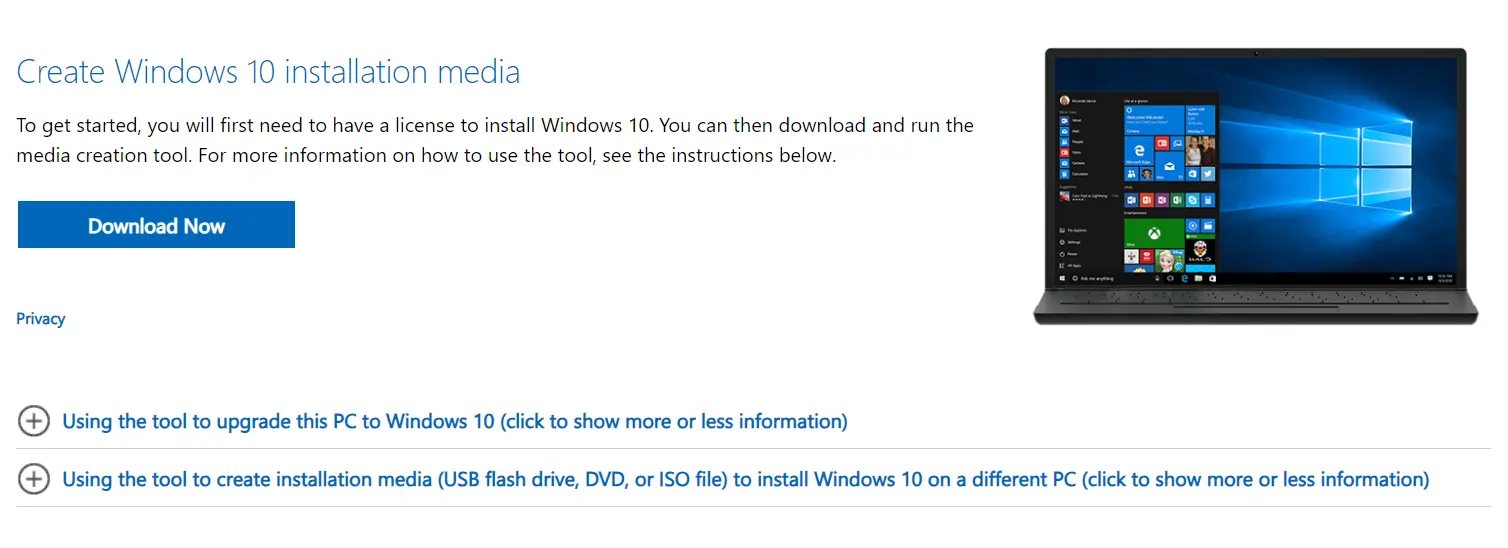
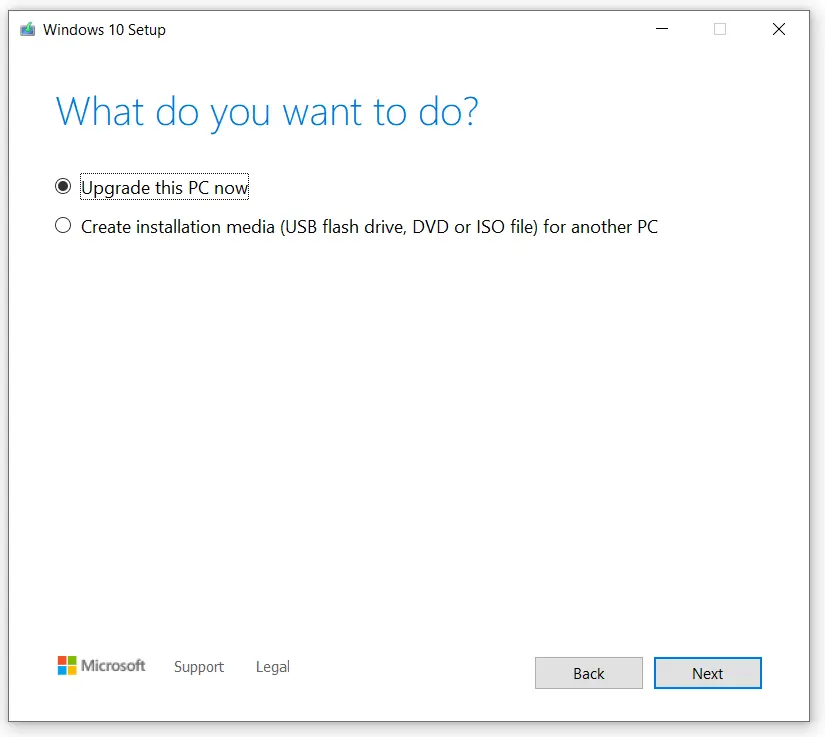
Follow the on-screen instructions to create a bootable USB drive or DVD, this may take few minutes to couple of hours depending on Internet speed.
More Read

Method 2: Direct ISO Download (Using a Hidden Browser Trick)
This second method is my favourite one, why waiting so long rather Downloading an official ISO file from Microsoft’s website. Without further a ado follow along below steps to download latest Microsoft Windows:
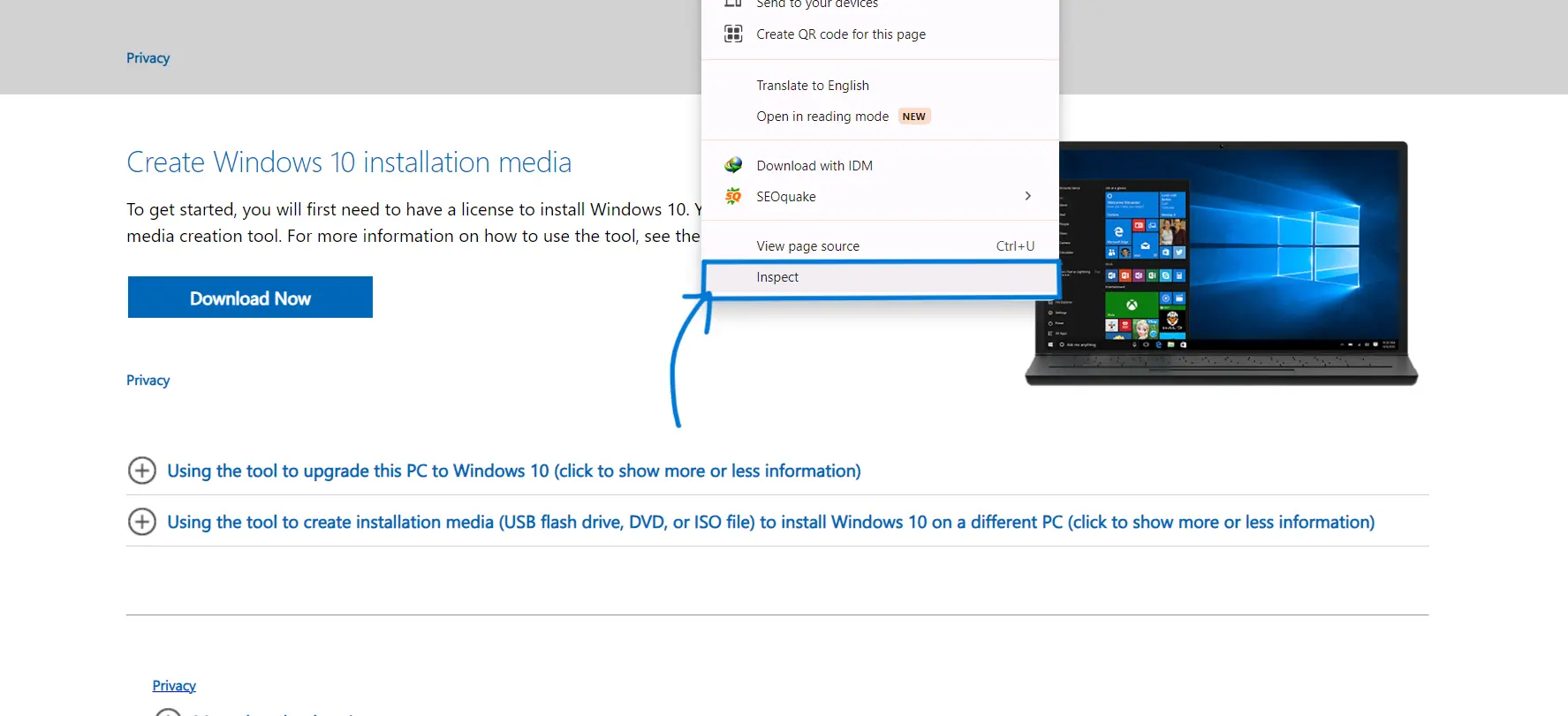
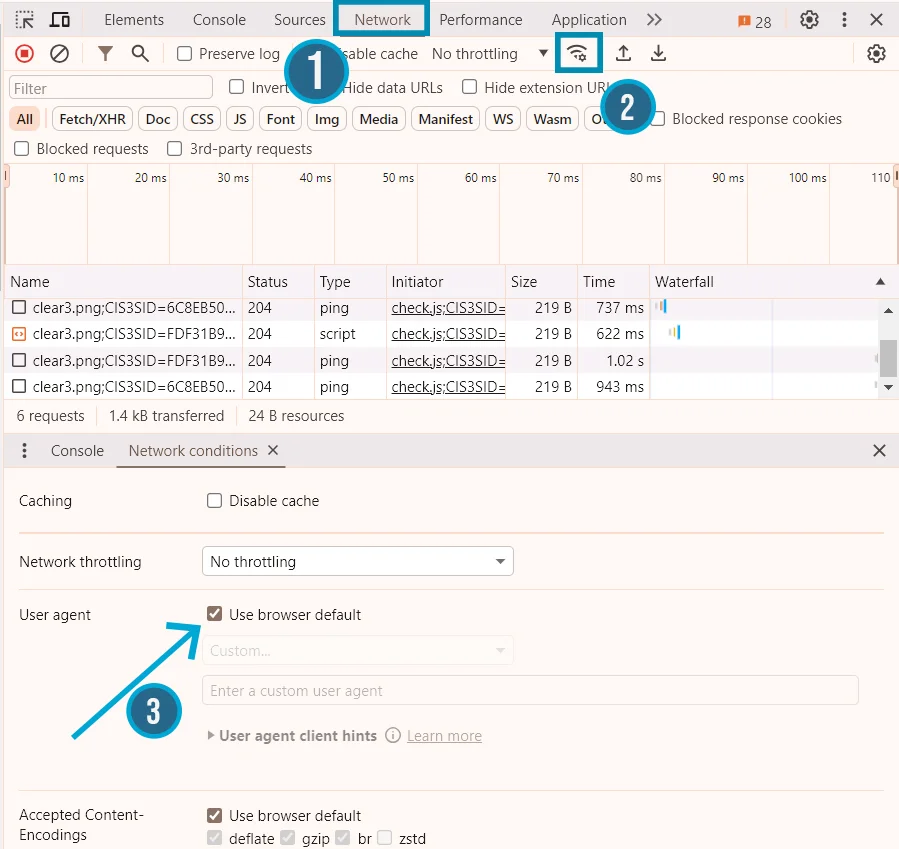
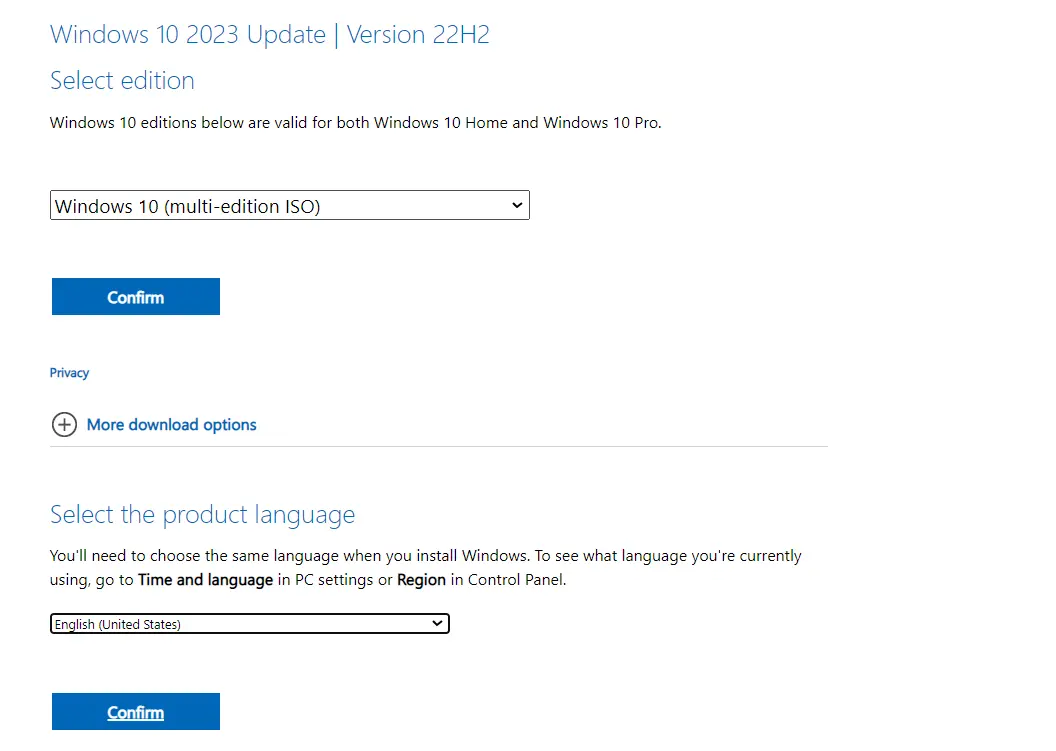
Create a Bootable USB Using Rufus
After downloading Windows 10 ISO file, next step is to create a bootable usb drive which will be later on use to install Windows on your system. To install, we need a software named as Rufus.
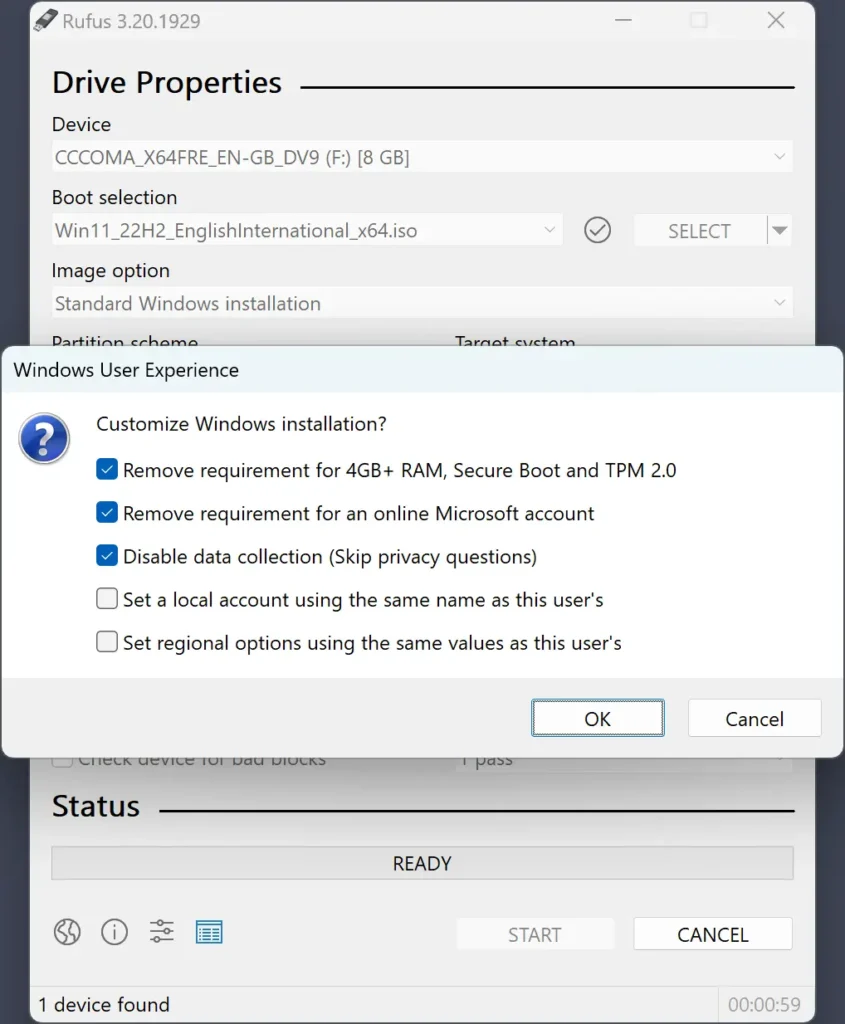
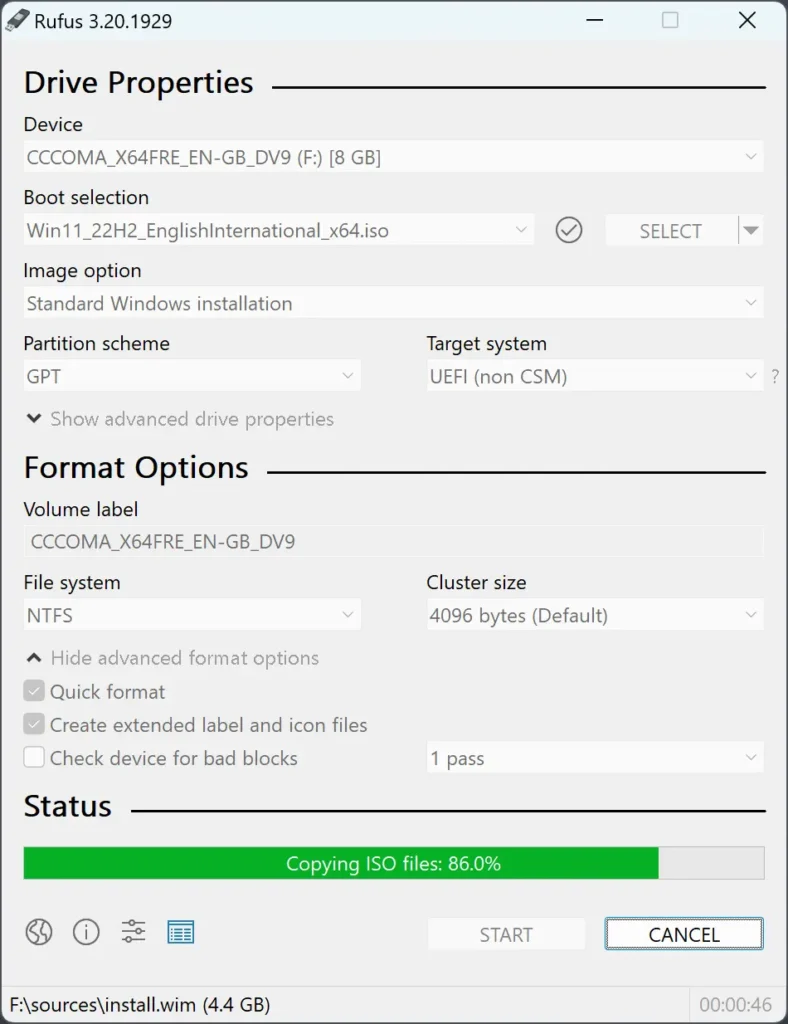
After opening Rufus, you need to connect you USB Drive of atleast 8 GB and make sure there is no data existant on you Drive. Note: Existing Data will be erased from your drive right after creating bootable.
MBR vs GPT: What’s Best for Your PC?
MBR or Master Boot Record is the older standard which supports drives up to 2TB with a maximum of 4 primary partitions (or 3 primary and 1 extended partition for more). Ideal for legacy systems with BIOS firmware. Where as GPT (GUID Partition Table) is the newer standard that supports massive drives (practically unlimited) and allowing for up to 128 partitions. Works best with UEFI firmware, common on modern systems.
Quick Note
If your PC is modern and uses UEFI firmware (most devices after 2015), go with GPT. If it’s an older system running legacy BIOS, choose MBR.
How to Choose between MBR and GPT?
To choose between either of Partition scheme, check your firmware If you are unsure, firstly restart your PC and enter the BIOS/UEFI settings (usually by pressing Del, Esc, or F2, F9, F12 during boot). Look for “UEFI mode” or a similar option. If present, choose GPT. In short, for a new Windows 10 installation on a modern system, MBR might work, but GPT is the future-proof option.
How to Install Windows 10 from Your Bootable USB
Now it’s time to install Windows 10 using the USB you created.
Depending on how fast your computer is, it might take a while for the installation to finish. After it does finish installing, your system will reboot itself and then bring up the new Windows 10 desktop.
Editor’s Recommendation:
Frequently Asked Questions
Can I use this guide for Windows 11 too?
Some steps apply, but Windows 11 has stricter hardware requirements. Use Microsoft’s compatibility checker first.
What happens if I don’t enter a product key?
You can skip it during installation and activate Windows later.
Is this method legal and safe?
Yes, all downloads are from Microsoft’s official servers. No third-party links involved.