
Many Windows users experience a frustrating issue where the Windows 10 Start Menu crashes after pinning Microsoft Photos as an app tile. This bug usually happens because of a corrupted link between the Photos app and the Start Menu, but it’s not the only cause.
In this guide, you’ll find step-by-step fixes that have been tested and recommended by Windows experts. We’ll start with proven method using PowerShell, to repair the Photos app and then cover other common causes like corrupted system files, outdated Windows updates, conflicting apps and even user profile issues. By the end, you’ll have multiple solutions to restore your Start Menu and keep your PC stable.
Why Does the Start Menu Crash After Setting an App Tile?
The issue is most often triggered when Microsoft Photos is set as a tile for a UWP (Universal Windows Platform) app. The corrupted integration between the tile and Photos causes the Start Menu to become unstable and crash upon launch.
Windows 10 Start Menu Crash Solution:
Follow these steps to uninstall the Photos app, which will resolve both windows 11 and windows 10 start menu crash issue:
- Step 1: Close Microsoft Photos: Make sure the Photos app is not running.
- Step 2: Open PowerShell as Administrator:
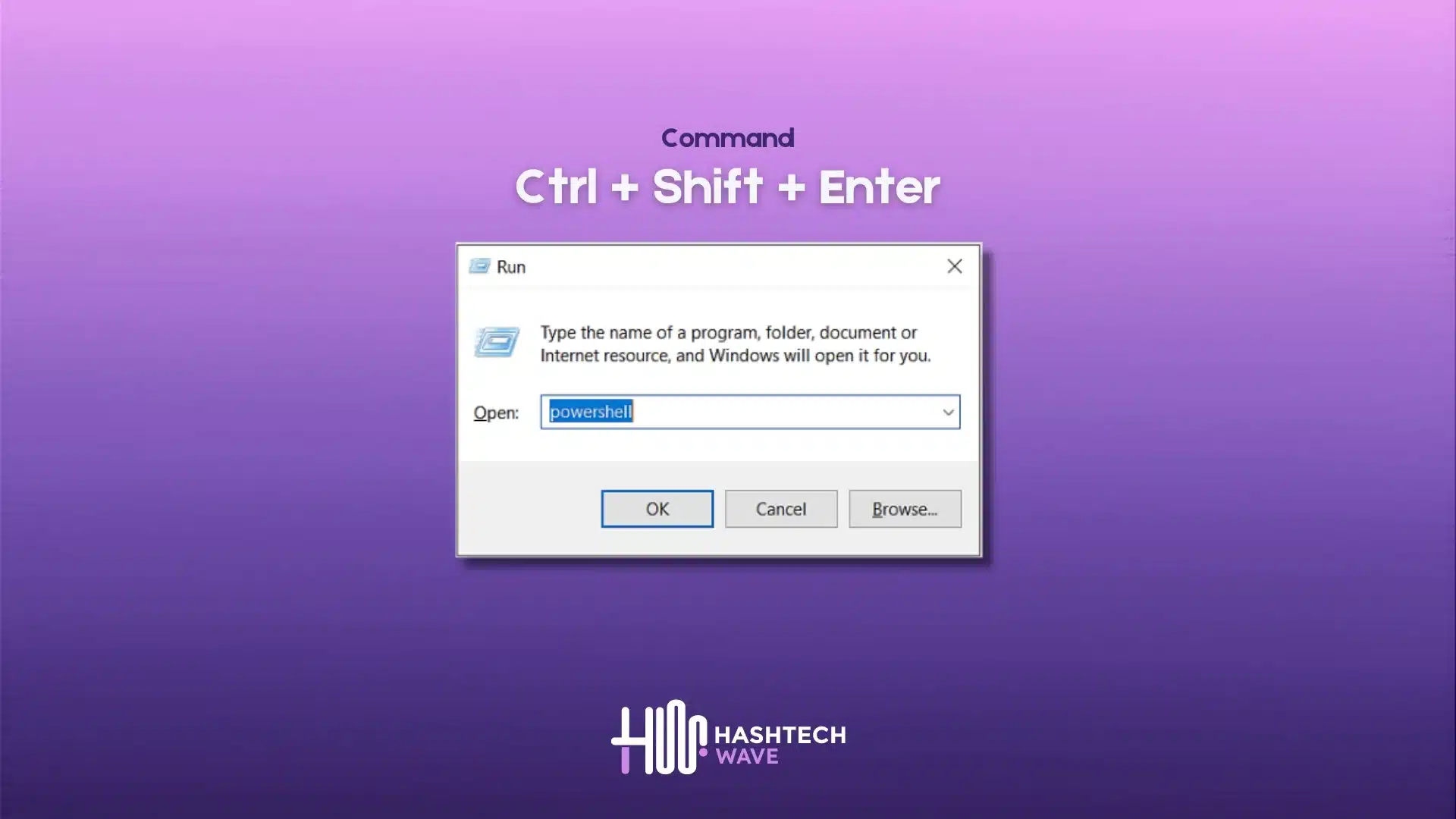
- Press the Windows key + R to open the Run dialog.
- Type “powershell” and press Ctrl + Shift + Enter to run PowerShell as an administrator
- Enter the Uninstall Command:
- Copy and paste the following command into the PowerShell window to Delete Microsoft Photos and press Enter:
Get-AppxPackage *photo* | Remove-AppxPackage- Wait for Uninstallation:
- A ‘Deployment operation progress’ message will appear briefly.
- Once it disappears, the Photos app has been uninstalled.
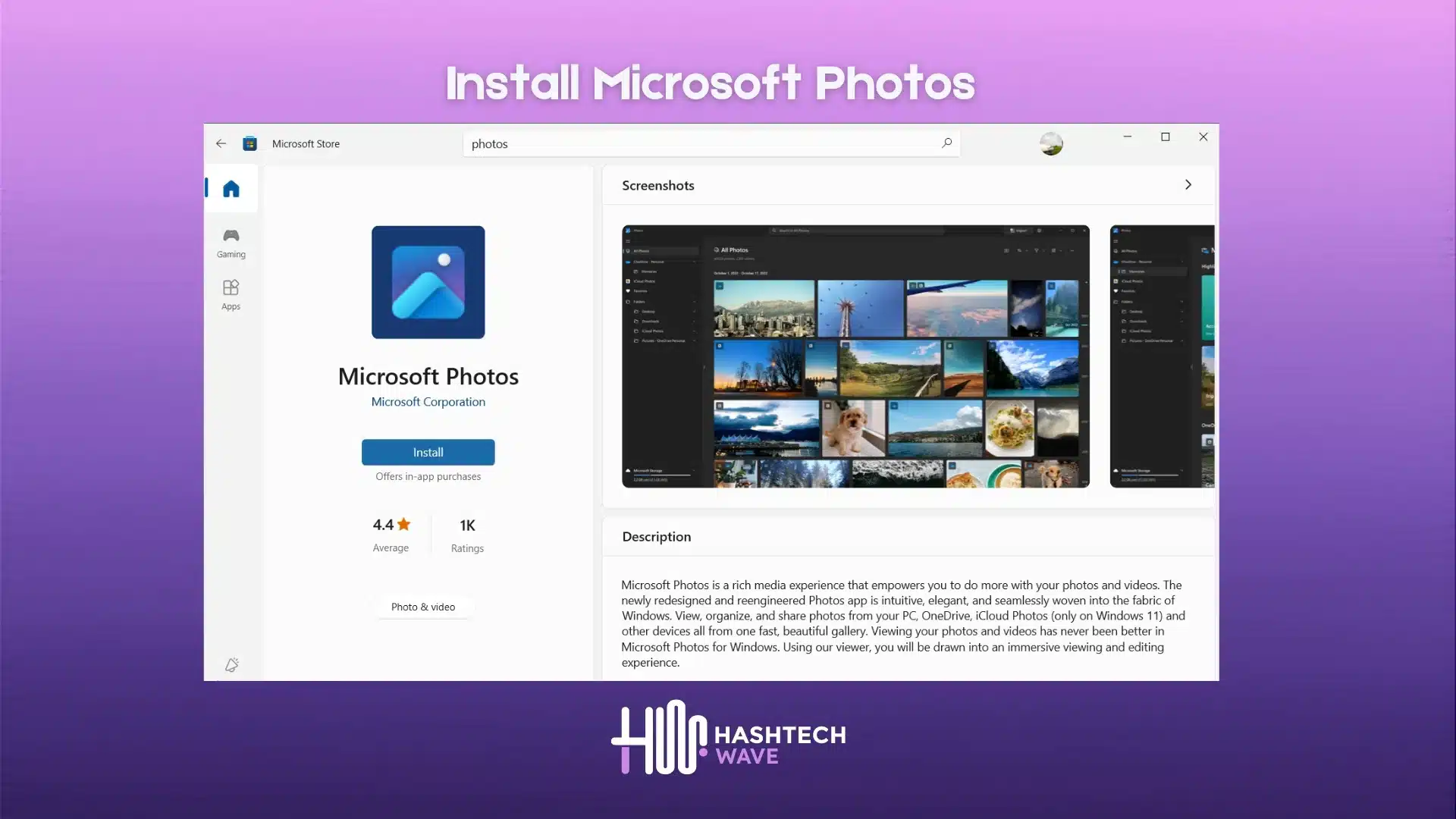
- Re-Download Microsoft Photos from Microsoft Store and Your Problem Windows 10 Start Menu Crash will be solved!
Bonus: Other Causes of Windows 10 Start Menu Crashes and Solutions
Besides the app tile issue, there are several other reasons for Windows 10 Start Menu Crash. Here are a few common causes and how to fix them:
Fix #1: Corrupted System Files
Cause: Over time, system files can become corrupt due to unexpected shutdowns, software issues, or malware
Solution: Open up Powershell with Admin Rights Run the System File Checker (SFC) and Deployment Imaging Service Management Tool (DISM).
- Open PowerShell as an administrator.
- Run the following command to start the System File Checker:
sfc /scannow- After the SFC scan is complete, run the following DISM command to repair the system image:
DISM /Online /Cleanup-Image /RestoreHealth- Restart your computer and check if the start menu is working properly.
Fix #2: Outdated Windows Version
Cause: Running an outdated version of Windows can lead to compatibility issues and bugs that may cause the start menu to crash.
Solution: Ensure your Windows 10 is up to date by following these steps:
- Go to Settings > Update & Security > Windows Update.
- Click on ‘Check for updates’ and install any available updates.
- Restart your computer after the updates are installed.
Fix #3: Conflicting Software
Cause: Sometimes, recently installed software or updates can conflict with the start menu, causing it to crash.
Solution: Identify and uninstall any conflicting software:
- Open Settings > Apps.
- Review the list of installed programs and identify any recently installed software.
- Select the software and click ‘Uninstall’.
- Restart your computer and see if the start menu issue is resolved.
Fix #4: Corrupted User Profile
Cause: A corrupt user profile can cause various issues, including a crashing start menu.
Solution:
- Go to Settings > Accounts > Family & other users
- Click Add someone else to this PC
- Set up a new local user profile
- Transfer your files and test the Start Menu under the new account
You May Also Like: MSI Raider 18 HX A14V Ultimate Power Review & 18″ 4K Display
Conclusion
Experiencing a start menu crashing issue in Windows 10 or 11 can obviously feel overwhelming but in most cases, the problem can be solved with a few simple steps. Uninstalling and reinstalling the Microsoft Photos app would also be the quickest solution if the crash occurs after pinning it as a tile. If that does not help, then running SFC and DISM scans, updating Windows, or creating a new user profile usually resolve more serious problems with the system.
To prevent future Start Menu crashes:
- Keep Windows updated with the latest patches.
- Avoid pinning apps that show unexpected behavior.
- Run system health scans regularly with PowerShell or Command Prompt.
These practices will help you avoid interruptions and will keep your Windows 10 setup running smoothly. If you have tried all these methods and still face issues, you can always check out Microsoft’s official support resources or community forums for advanced troubleshooting.
Can I reinstall Microsoft Photos after uninstalling it?
Yes. You can reinstall Microsoft Photos anytime from the Microsoft Store. Removing it won’t delete your pictures, only the app itself.
Is it safe to uninstall built-in apps like Photos?
Yes, uninstalling Photos is safe. It won’t affect your core Windows 10 functionality. You can always reinstall it later if needed.
Do I lose my images if I remove the Photos app?
No. Your photos and videos remain stored on your PC or OneDrive. Only the Photos app is removed, not your media files.
Why does this crash happen in the first place?
The crash usually happens when Microsoft Photos is set as a Start Menu tile. The tile integration sometimes becomes corrupted, making the menu unstable.
Editor’s Recommendation: